Back to: Digital Essentials
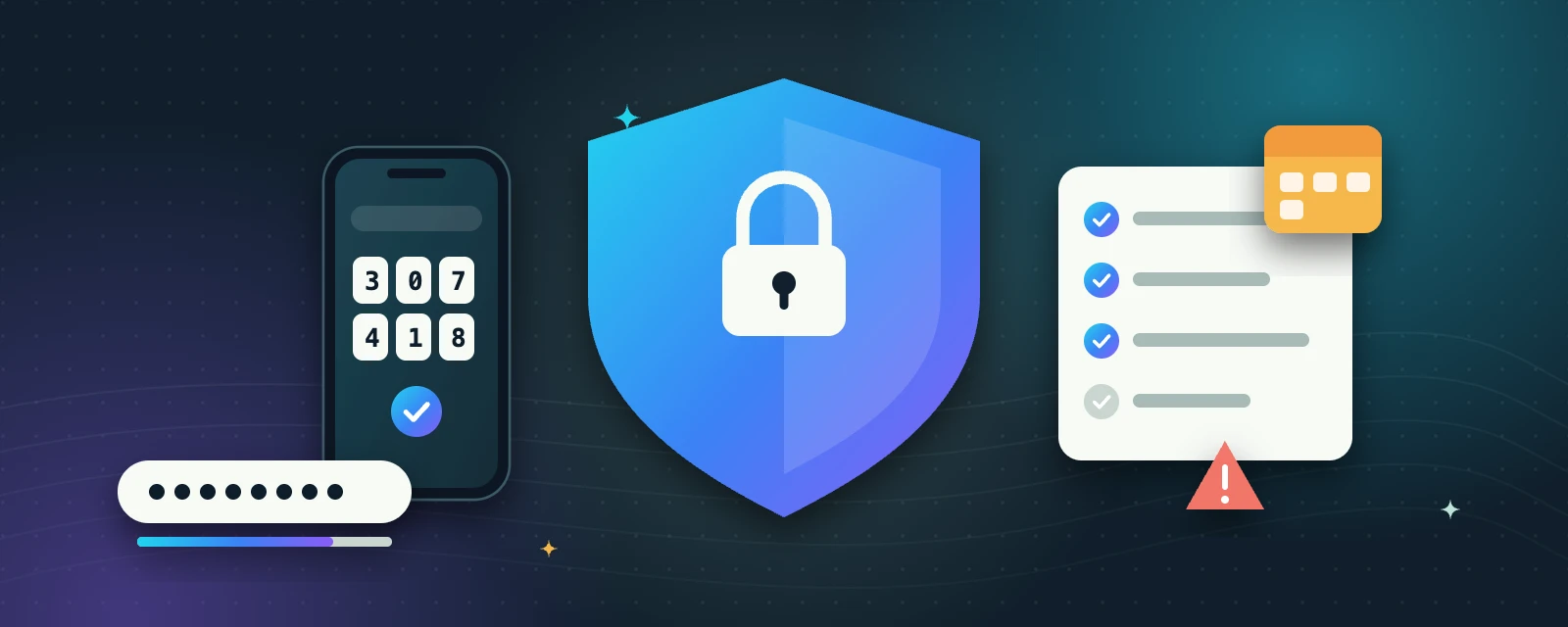
Make everyday digital work safer
Security is a set of small habits. Use a different strong password for every account. A reputable password manager can create and store long, unique passwords; protect the manager itself carefully. Never put real passwords into course exercises or messages.
Protect access
- Turn on multifactor authentication where available. It adds another check when signing in. Keep recovery codes in a safe place separate from the account.
- Install device and app security updates. Enable automatic updates where practical.
- Lock your screen when you step away, and sign out on shared devices. Avoid saving passwords on public computers.
- Keep your recovery email or phone number current and protect that account too.
Pause before clicking
Scams may promise prizes, impersonate support or threaten account closure. Do not share a password, verification code or recovery code with someone who contacts you. If a message demands action, open the organisation’s known website or app yourself, or contact it through a previously verified channel. A padlock means a connection is encrypted; it does not prove the organisation is trustworthy.
If you think an account is compromised, use its official recovery process from a trusted device. Change the affected password, review signed-in devices and access settings, and change passwords on any other accounts that reused it.
Codes are secrets
Never share a sign-in, verification or recovery code—even with someone who says they are “support”.
The padlock isn’t a trust badge
It means the connection is encrypted, not that the website or the people behind it are honest.
One password per account
Reusing a password means one leak can unlock several of your accounts.
Try it: your final project
- Create a Digital Routine document in your practice folder.
- Write your file naming and backup plan.
- Add a five-point checklist for reviewing an email or shared document.
- Record the four checks you will use when evaluating information.
- Add a weekly reminder to review updates and backups. Write down where to find official account recovery help—without recording any passwords.
Key takeaways
- Use a unique, strong password for every account and turn on multifactor authentication.
- Pause before clicking: go to the organisation’s official website or app yourself.
- Small weekly habits—updates, backups and a locked screen—keep you safer.
Self-check: “Support” asks for your sign-in code. Should you send it?
No. Treat sign-in and recovery codes as secrets. Stop the conversation and contact the service through its official support channel.
You have completed the learning activities. Select Mark Complete to record your progress, then return to My learning to choose your next course. This informal course does not provide an accredited qualification.
